
如何利用GPT-4o保持风格一致性
以下是相关方法和Prompt


Dan  @d4m1n
Apr 22 25
View on Twitter
You're using GPT-4o image generation wrong.
I was too.
There's a better way to get consistent styles.
Here's how + prompts:


人们一直在使用这种技术来持续创造出色的资产(见下文)
但是也...
x.com/hewarsaber/sta

Hewar@hewarsaber
Apr 17 25
View on Twitter
GPT‑4o + KlingAI 3D logos are going viral.
Animate your logo into trading cards with 2 prompts.
Here are the prompts + process
将一致的样式和颜色应用于新的或现有的图像。
我将解释如何做到:
x.com/dudufolio/stat




该技术被称为 JSON 样式指南。
如果您有以下情况:
 已有图像,想应用一致风格样式
 想要从头开始创建图像
 如何从现有图像中提取风格
我将分享提示并解释如何操作
如何从现有图像中提取风格
我将分享提示并解释如何操作
已有图像,想应用一致风格样式
想要从头开始创建图像
如何从现有图像中提取风格
我将分享提示并解释如何操作为现有图片应用一致的风格
第一步是撰写一个简洁的设计需求。例如:
A pop‑art silkscreen look featuring tight, photo‑derived compositions—rendered in flat, high‑contrast blocks of vivid CMYK spot color (hot magenta, process cyan, canary yellow, acid green) overlaid with a bold black contour; the screen‑printing technique introduces visible halftone dots, slight color‑layer mis‑registration that lets outlines peek through, and occasional ink smudges, while the finished surface resembles glossy offset print.
 如果你不确定如何写,本帖后续会解释如何从现有图片中提取风格描述。
 然后,使用以下Prompt来生成一个JSON风格指南。
(我使用了Claude 3.7,但能力稍弱的模型也应该可以)
You are tasked with generating a JSON object containing properties for image generation based on a simple design prompt. The JSON object should have the following top-level keys: style_name, inspiration, color_palette, rendering, background, subjects, themes, and usage_notes. Each of these keys should have properties that reflect the input design prompt. Here is the design prompt: <design_prompt> {{DESIGN_PROMPT_FROM_ABOVE}} </design_prompt> Follow these steps to generate the JSON object: 1. Analyze the design prompt and extract key elements such as style, colors, and themes. 2. Generate a "style_name" that encapsulates the essence of the design prompt in a catchy, descriptive phrase. 3. Create an "inspiration" list with 2-4 artistic styles or concepts that align with the design prompt. 4. Develop a "color_palette" object with the following properties: - primary: The main color (in hex code) derived from the design prompt - secondary: A complementary color (in hex code) - highlight: An accent color (in hex code) - shadow: A darker shade (in hex code) for depth - background_gradient: An array of two colors (in hex codes) for the background 5. Define a "rendering" object with properties that describe the technical aspects of the image: - resolution: Specify the image quality (e.g., "high_res", "low_res") - technique: Describe the main rendering technique (e.g., "vector", "pixel_art", "3D") - special_effects: List any special rendering effects (e.g., "glow", "shadow", "texture") 6. Create a "background" object with properties that describe the image background: - type: Specify the background style (e.g., "solid", "gradient", "pattern") - details: Provide additional information about the background 7. Define a "subjects" object with properties that describe the main elements of the image: - style: Describe the overall style of the subjects - details: Provide specific details about how the subjects should be rendered 8. Generate a "themes" array with 3-5 thematic elements or concepts related to the design prompt. 9. Create a "usage_notes" string with brief guidelines on how to use the style effectively. Ensure that all properties in the JSON object reflect the input design prompt. Be creative and consistent in your interpretations. Output your final JSON object within <json_output> tags. Format the JSON with proper indentation for readability.
你需要将第一步中撰写的设计需求内容替换到Prompt中的 <design_prompt>{{DESIGN_PROMPT_FROM_ABOVE}}</design_prompt> 位置。
然后,使用以下Prompt来生成一个JSON风格指南。
(我使用了Claude 3.7,但能力稍弱的模型也应该可以)
You are tasked with generating a JSON object containing properties for image generation based on a simple design prompt. The JSON object should have the following top-level keys: style_name, inspiration, color_palette, rendering, background, subjects, themes, and usage_notes. Each of these keys should have properties that reflect the input design prompt. Here is the design prompt: <design_prompt> {{DESIGN_PROMPT_FROM_ABOVE}} </design_prompt> Follow these steps to generate the JSON object: 1. Analyze the design prompt and extract key elements such as style, colors, and themes. 2. Generate a "style_name" that encapsulates the essence of the design prompt in a catchy, descriptive phrase. 3. Create an "inspiration" list with 2-4 artistic styles or concepts that align with the design prompt. 4. Develop a "color_palette" object with the following properties: - primary: The main color (in hex code) derived from the design prompt - secondary: A complementary color (in hex code) - highlight: An accent color (in hex code) - shadow: A darker shade (in hex code) for depth - background_gradient: An array of two colors (in hex codes) for the background 5. Define a "rendering" object with properties that describe the technical aspects of the image: - resolution: Specify the image quality (e.g., "high_res", "low_res") - technique: Describe the main rendering technique (e.g., "vector", "pixel_art", "3D") - special_effects: List any special rendering effects (e.g., "glow", "shadow", "texture") 6. Create a "background" object with properties that describe the image background: - type: Specify the background style (e.g., "solid", "gradient", "pattern") - details: Provide additional information about the background 7. Define a "subjects" object with properties that describe the main elements of the image: - style: Describe the overall style of the subjects - details: Provide specific details about how the subjects should be rendered 8. Generate a "themes" array with 3-5 thematic elements or concepts related to the design prompt. 9. Create a "usage_notes" string with brief guidelines on how to use the style effectively. Ensure that all properties in the JSON object reflect the input design prompt. Be creative and consistent in your interpretations. Output your final JSON object within <json_output> tags. Format the JSON with proper indentation for readability.
你需要将第一步中撰写的设计需求内容替换到Prompt中的 <design_prompt>{{DESIGN_PROMPT_FROM_ABOVE}}</design_prompt> 位置。
 现在将上一步生成的JSON输出(在 <json_output> 标签内的内容)复制到ChatGPT并选择GPT-4o。
使用以下Prompt:
Apply this style to the attached image. Do not change anything else in the image: {{JSON_OUTPUT_FROM_}}
你需要将 <json_output> 标签内的JSON内容替换到Prompt中的 {{JSON_OUTPUT_FROM_}} 位置。
现在将上一步生成的JSON输出(在 <json_output> 标签内的内容)复制到ChatGPT并选择GPT-4o。
使用以下Prompt:
Apply this style to the attached image. Do not change anything else in the image: {{JSON_OUTPUT_FROM_}}
你需要将 <json_output> 标签内的JSON内容替换到Prompt中的 {{JSON_OUTPUT_FROM_}} 位置。
第一步是撰写一个简洁的设计需求。例如:
A pop‑art silkscreen look featuring tight, photo‑derived compositions—rendered in flat, high‑contrast blocks of vivid CMYK spot color (hot magenta, process cyan, canary yellow, acid green) overlaid with a bold black contour; the screen‑printing technique introduces visible halftone dots, slight color‑layer mis‑registration that lets outlines peek through, and occasional ink smudges, while the finished surface resembles glossy offset print.
如果你不确定如何写,本帖后续会解释如何从现有图片中提取风格描述。
然后,使用以下Prompt来生成一个JSON风格指南。
(我使用了Claude 3.7,但能力稍弱的模型也应该可以)
You are tasked with generating a JSON object containing properties for image generation based on a simple design prompt. The JSON object should have the following top-level keys: style_name, inspiration, color_palette, rendering, background, subjects, themes, and usage_notes. Each of these keys should have properties that reflect the input design prompt. Here is the design prompt: <design_prompt> {{DESIGN_PROMPT_FROM_ABOVE}} </design_prompt> Follow these steps to generate the JSON object: 1. Analyze the design prompt and extract key elements such as style, colors, and themes. 2. Generate a "style_name" that encapsulates the essence of the design prompt in a catchy, descriptive phrase. 3. Create an "inspiration" list with 2-4 artistic styles or concepts that align with the design prompt. 4. Develop a "color_palette" object with the following properties: - primary: The main color (in hex code) derived from the design prompt - secondary: A complementary color (in hex code) - highlight: An accent color (in hex code) - shadow: A darker shade (in hex code) for depth - background_gradient: An array of two colors (in hex codes) for the background 5. Define a "rendering" object with properties that describe the technical aspects of the image: - resolution: Specify the image quality (e.g., "high_res", "low_res") - technique: Describe the main rendering technique (e.g., "vector", "pixel_art", "3D") - special_effects: List any special rendering effects (e.g., "glow", "shadow", "texture") 6. Create a "background" object with properties that describe the image background: - type: Specify the background style (e.g., "solid", "gradient", "pattern") - details: Provide additional information about the background 7. Define a "subjects" object with properties that describe the main elements of the image: - style: Describe the overall style of the subjects - details: Provide specific details about how the subjects should be rendered 8. Generate a "themes" array with 3-5 thematic elements or concepts related to the design prompt. 9. Create a "usage_notes" string with brief guidelines on how to use the style effectively. Ensure that all properties in the JSON object reflect the input design prompt. Be creative and consistent in your interpretations. Output your final JSON object within <json_output> tags. Format the JSON with proper indentation for readability.
你需要将第一步中撰写的设计需求内容替换到Prompt中的 <design_prompt>{{DESIGN_PROMPT_FROM_ABOVE}}</design_prompt> 位置。
现在将上一步生成的JSON输出(在 <json_output> 标签内的内容)复制到ChatGPT并选择GPT-4o。
使用以下Prompt:
Apply this style to the attached image. Do not change anything else in the image: {{JSON_OUTPUT_FROM_}}
你需要将 <json_output> 标签内的JSON内容替换到Prompt中的 {{JSON_OUTPUT_FROM_}} 位置。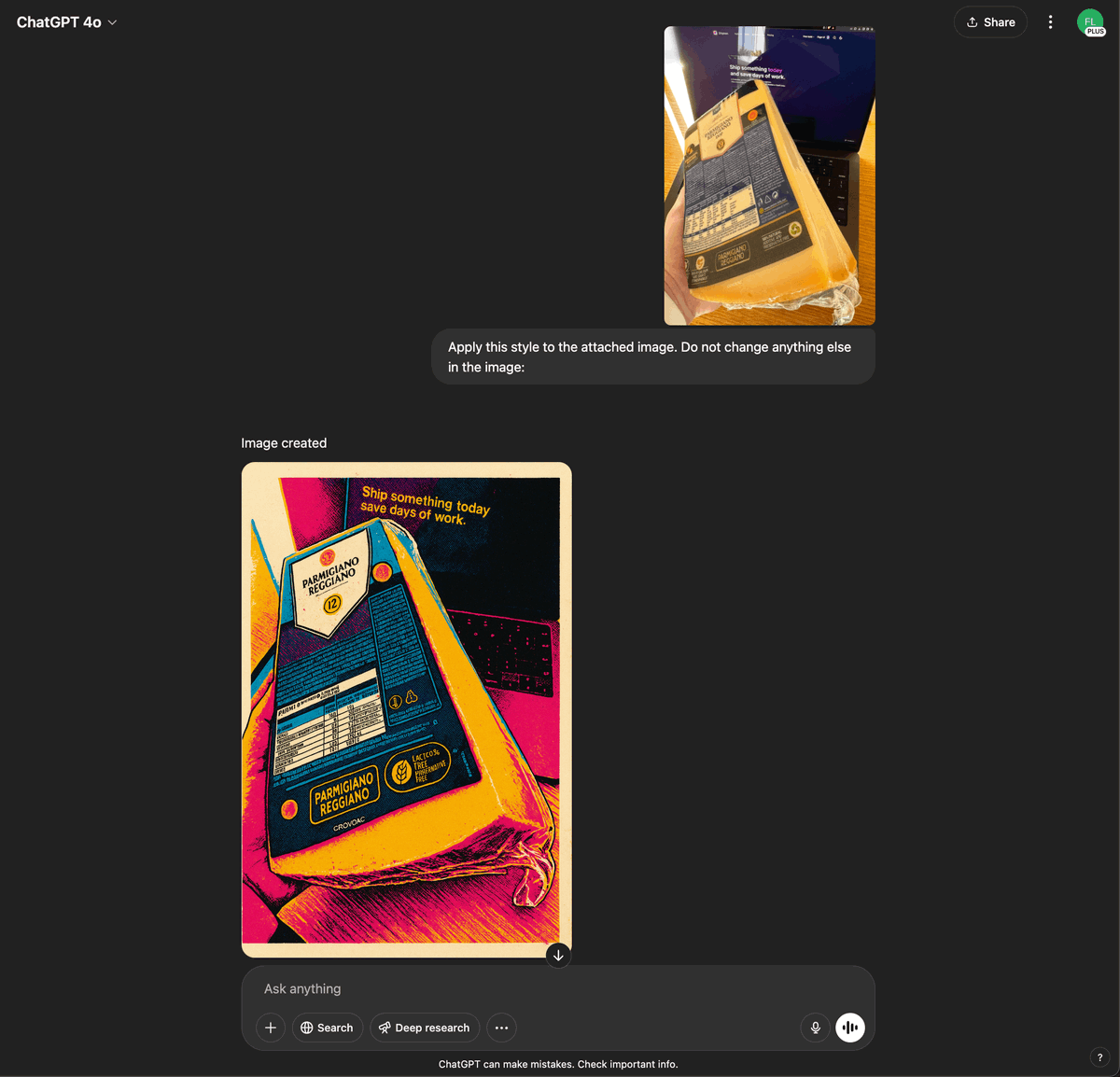 🥈 如果你想从零开始创建图片,同样的技巧也奏效。
不同之处在于你需要更清楚地说明你想创建什么:一个图标、一个Logo、一个插画、一个写实图片等等。
🥈 如果你想从零开始创建图片,同样的技巧也奏效。
不同之处在于你需要更清楚地说明你想创建什么:一个图标、一个Logo、一个插画、一个写实图片等等。
 第一步是撰写一个简洁的设计需求。例如:
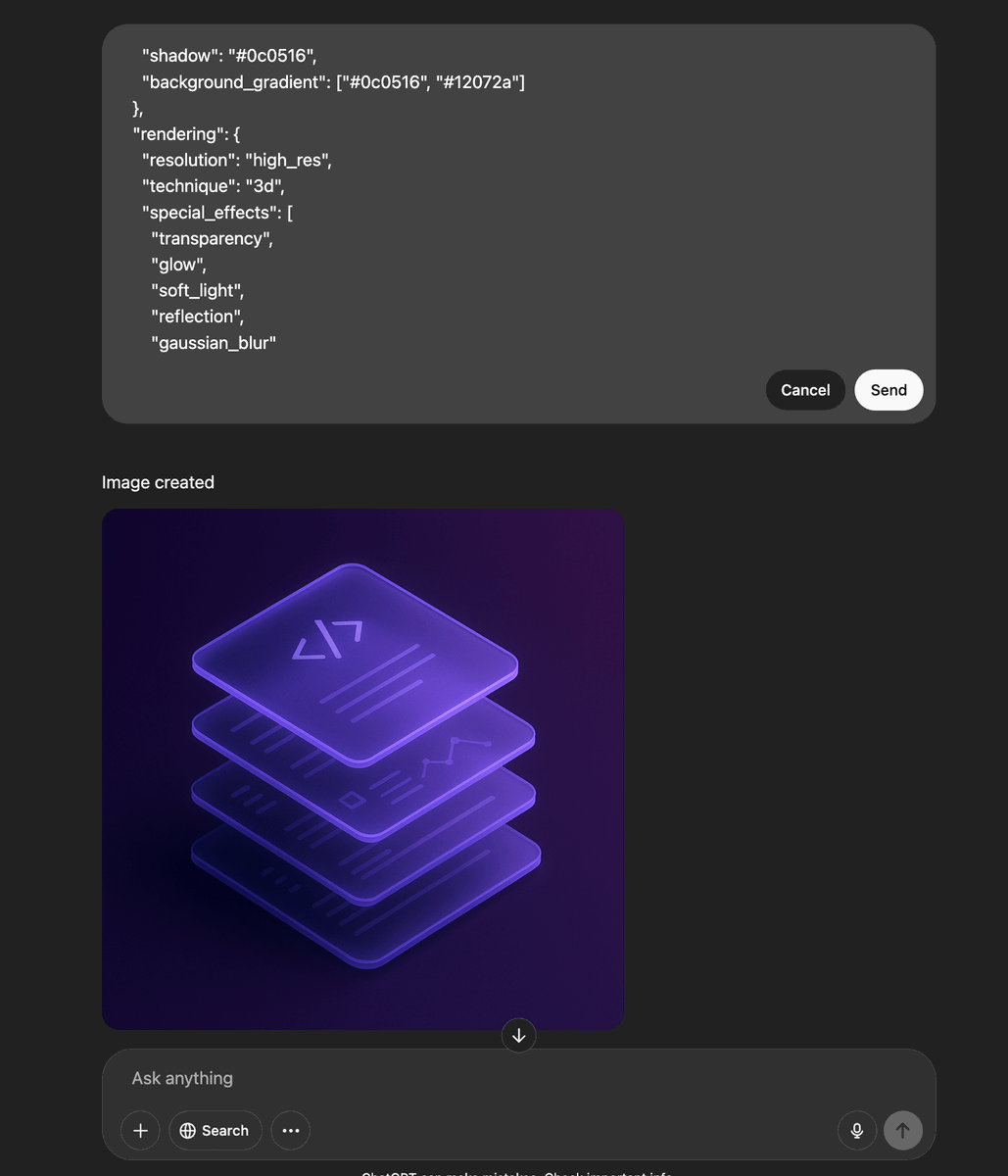
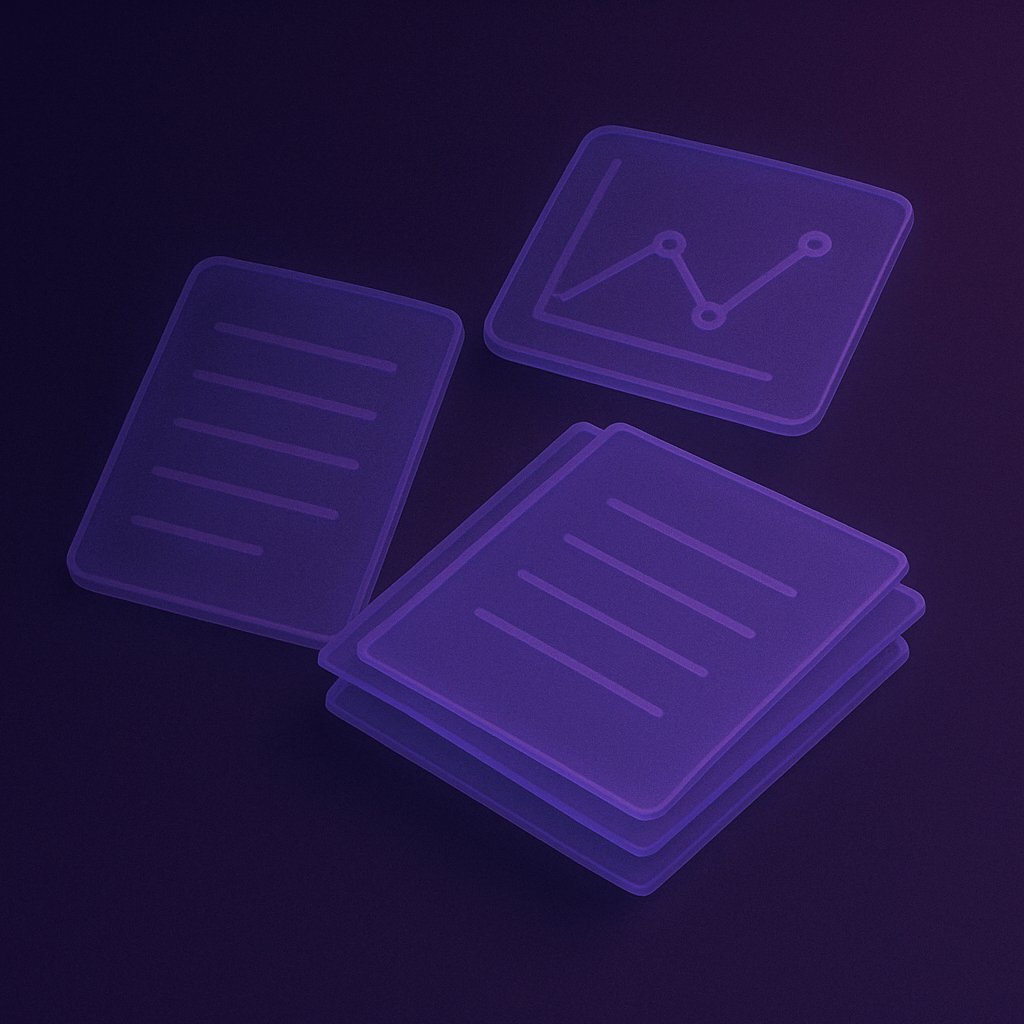
Create an image of a modern iconThe subject of the icon is: A research and planning phase The image features a sleek, monochromatic 3D aesthetic with a dark purple palette and high contrast highlights. It uses layered, semi-transparent elements arranged in an isometric perspective to create depth, resembling frosted glass.
对于图标和Logo,记住要指定背景透明度。
然后,使用以下Prompt来生成一个JSON风格指南。
(我使用了Claude 3.7,但能力稍弱的模型也应该可以使用)
You are tasked with generating a JSON object containing properties for image generation based on a simple design prompt. The JSON object should have the following top-level keys: style_name, inspiration, color_palette, rendering, background, subjects, themes, and usage_notes. Each of these keys should have properties that reflect the input design prompt. Here is the design prompt: <design_prompt> {{DESIGN_PROMPT_FROM_ABOVE}} </design_prompt> Follow these steps to generate the JSON object: 1. Analyze the design prompt and extract key elements such as style, colors, and themes. 2. Generate a "style_name" that encapsulates the essence of the design prompt in a catchy, descriptive phrase. 3. Create an "inspiration" list with 2-4 artistic styles or concepts that align with the design prompt. 4. Develop a "color_palette" object with the following properties: - primary: The main color (in hex code) derived from the design prompt - secondary: A complementary color (in hex code) - highlight: An accent color (in hex code) - shadow: A darker shade (in hex code) for depth - background_gradient: An array of two colors (in hex codes) for the background 5. Define a "rendering" object with properties that describe the technical aspects of the image: - resolution: Specify the image quality (e.g., "high_res", "low_res") - technique: Describe the main rendering technique (e.g., "vector", "pixel_art", "3D") - special_effects: List any special rendering effects (e.g., "glow", "shadow", "texture") 6. Create a "background" object with properties that describe the image background: - type: Specify the background style (e.g., "solid", "gradient", "pattern") - details: Provide additional information about the background 7. Define a "subjects" object with properties that describe the main elements of the image: - style: Describe the overall style of the subjects - details: Provide specific details about how the subjects should be rendered 8. Generate a "themes" array with 3-5 thematic elements or concepts related to the design prompt. 9. Create a "usage_notes" string with brief guidelines on how to use the style effectively. Ensure that all properties in the JSON object reflect the input design prompt. Be creative and consistent in your interpretations. Output your final JSON object within <json_output> tags. Format the JSON with proper indentation for readability.
你需要将第一步中撰写的设计需求内容替换到Prompt中的 <design_prompt>{{DESIGN_PROMPT_FROM_ABOVE}}</design_prompt> 位置。
现在将上一步生成的JSON输出(在 <json_output> 标签内的内容)复制到ChatGPT并选择GPT-4o。
使用以下Prompt:
Create an <image | icon | logo | graphic | etc> in this style: {{JSON_OUTPUT_FROM_}}
你需要选择 < > 里的其中一个类型(例如 image 或 icon 等),并将 <json_output> 标签内的JSON内容替换到Prompt中的 {{JSON_OUTPUT_FROM_}} 位置。
第一步是撰写一个简洁的设计需求。例如:
Create an image of a modern iconThe subject of the icon is: A research and planning phase The image features a sleek, monochromatic 3D aesthetic with a dark purple palette and high contrast highlights. It uses layered, semi-transparent elements arranged in an isometric perspective to create depth, resembling frosted glass.
对于图标和Logo,记住要指定背景透明度。
然后,使用以下Prompt来生成一个JSON风格指南。
(我使用了Claude 3.7,但能力稍弱的模型也应该可以使用)
You are tasked with generating a JSON object containing properties for image generation based on a simple design prompt. The JSON object should have the following top-level keys: style_name, inspiration, color_palette, rendering, background, subjects, themes, and usage_notes. Each of these keys should have properties that reflect the input design prompt. Here is the design prompt: <design_prompt> {{DESIGN_PROMPT_FROM_ABOVE}} </design_prompt> Follow these steps to generate the JSON object: 1. Analyze the design prompt and extract key elements such as style, colors, and themes. 2. Generate a "style_name" that encapsulates the essence of the design prompt in a catchy, descriptive phrase. 3. Create an "inspiration" list with 2-4 artistic styles or concepts that align with the design prompt. 4. Develop a "color_palette" object with the following properties: - primary: The main color (in hex code) derived from the design prompt - secondary: A complementary color (in hex code) - highlight: An accent color (in hex code) - shadow: A darker shade (in hex code) for depth - background_gradient: An array of two colors (in hex codes) for the background 5. Define a "rendering" object with properties that describe the technical aspects of the image: - resolution: Specify the image quality (e.g., "high_res", "low_res") - technique: Describe the main rendering technique (e.g., "vector", "pixel_art", "3D") - special_effects: List any special rendering effects (e.g., "glow", "shadow", "texture") 6. Create a "background" object with properties that describe the image background: - type: Specify the background style (e.g., "solid", "gradient", "pattern") - details: Provide additional information about the background 7. Define a "subjects" object with properties that describe the main elements of the image: - style: Describe the overall style of the subjects - details: Provide specific details about how the subjects should be rendered 8. Generate a "themes" array with 3-5 thematic elements or concepts related to the design prompt. 9. Create a "usage_notes" string with brief guidelines on how to use the style effectively. Ensure that all properties in the JSON object reflect the input design prompt. Be creative and consistent in your interpretations. Output your final JSON object within <json_output> tags. Format the JSON with proper indentation for readability.
你需要将第一步中撰写的设计需求内容替换到Prompt中的 <design_prompt>{{DESIGN_PROMPT_FROM_ABOVE}}</design_prompt> 位置。
现在将上一步生成的JSON输出(在 <json_output> 标签内的内容)复制到ChatGPT并选择GPT-4o。
使用以下Prompt:
Create an <image | icon | logo | graphic | etc> in this style: {{JSON_OUTPUT_FROM_}}
你需要选择 < > 里的其中一个类型(例如 image 或 icon 等),并将 <json_output> 标签内的JSON内容替换到Prompt中的 {{JSON_OUTPUT_FROM_}} 位置。
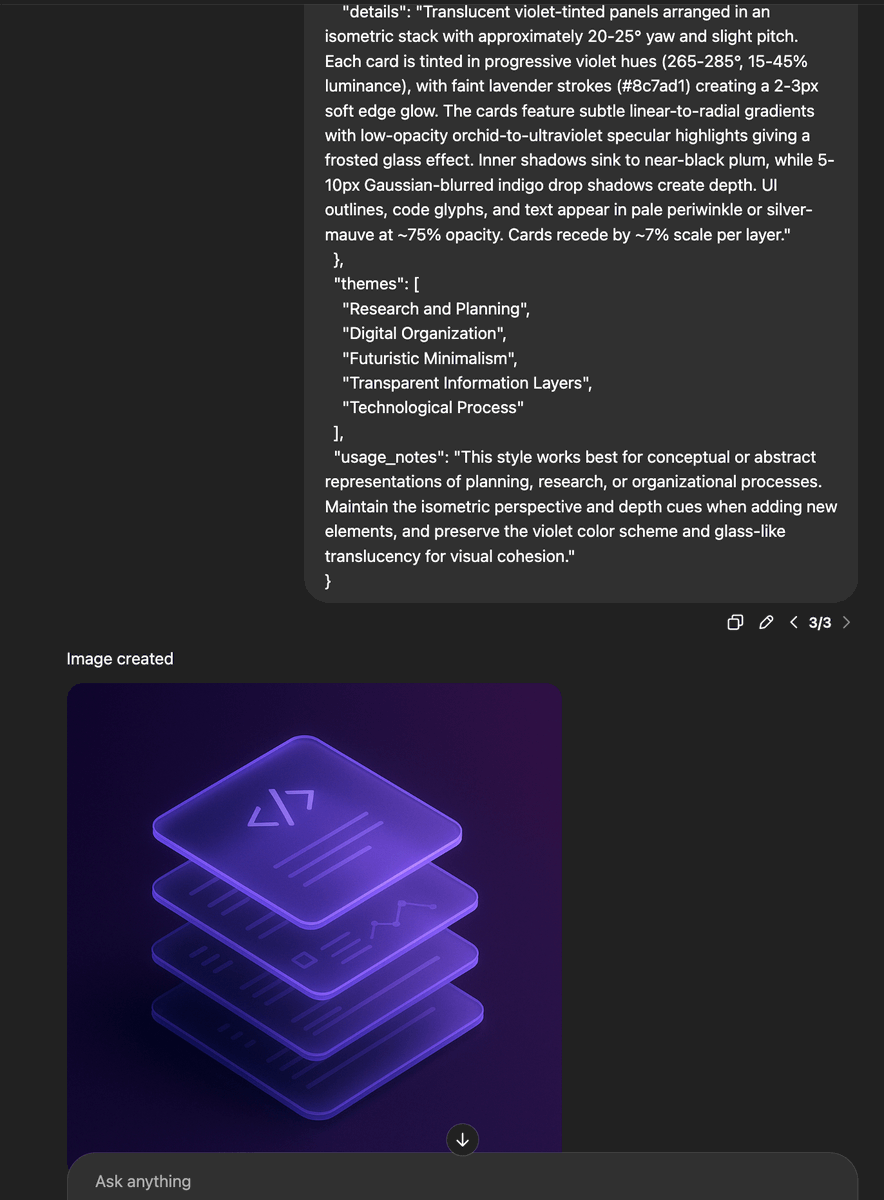
 🥉 编写设计Prompt(设计需求)并非总是容易的。
但使用新的o3和o4模型(例如 GPT-4o),这变得非常容易做到。
操作步骤:
打开ChatGPT,例如选择o3或o4模型(需要支持图像输入的模型),上传任意你想要模仿风格的图片,然后使用以下Prompt:
Describe the visual characteristics—such as color palette, resolution, shading techniques, and composition rules—of the art style, to enable consistent generation of new images in the same aesthetic. Output 1 paragraph only.
这将为你提供一个非常好的描述,可以用作前面两个例子中的 DESIGN_PROMPT 内容
🥉 编写设计Prompt(设计需求)并非总是容易的。
但使用新的o3和o4模型(例如 GPT-4o),这变得非常容易做到。
操作步骤:
打开ChatGPT,例如选择o3或o4模型(需要支持图像输入的模型),上传任意你想要模仿风格的图片,然后使用以下Prompt:
Describe the visual characteristics—such as color palette, resolution, shading techniques, and composition rules—of the art style, to enable consistent generation of new images in the same aesthetic. Output 1 paragraph only.
这将为你提供一个非常好的描述,可以用作前面两个例子中的 DESIGN_PROMPT 内容 
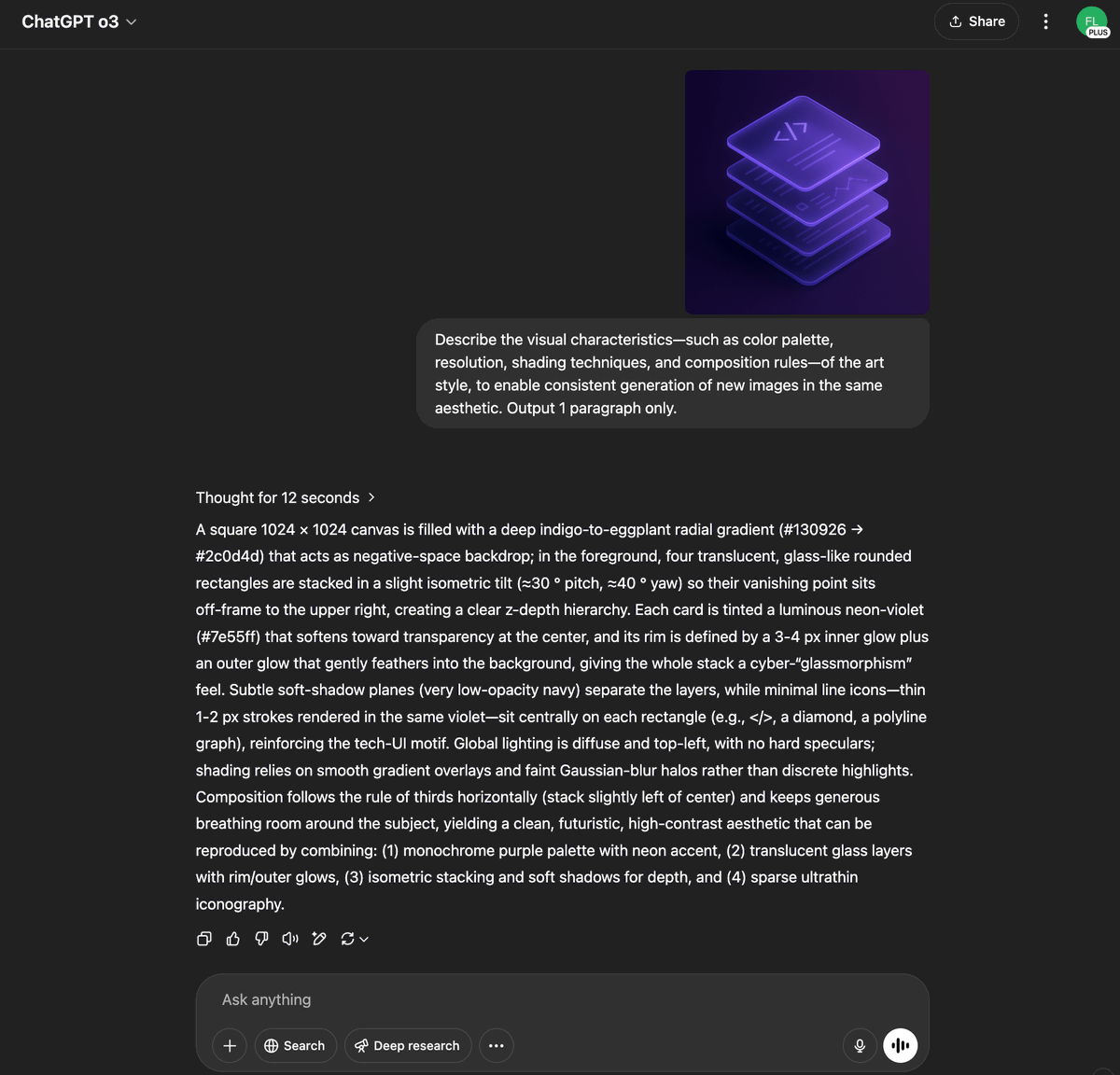
这个方法确实效果很好,在创建风格一致的图片,尤其像用于着陆页(landing pages)的图标时。
我发现,即使是4o模型的图片生成,如果你给出的描述太长,它也无法完全遵循所有细节,特别是颜色和详细的自定义风格。
而这种JSON方法对于包含特定颜色和详细自定义风格的复杂Prompt,似乎效果好得多。
 我们帮你完成并上线一个项目
也许能改变你的生活
我们帮你完成并上线一个项目
也许能改变你的生活

关注@Yangyi,分享更多有价值的内容

Yangyi
@Yangyixxxx
- 人机协同内容架构师
- Vibe Marketing Growth Hacker
- 正在实践基于Vibe Maketing的Go to market策略
- 提交你的AI Agents:https://t.co/YLeokXl525
Missing some tweets in this thread? Or failed to load images or videos? You can try to .